How to Fix Rackspace Webmail Login Problems
It starts as a minor annoyance but quickly becomes a major productivity blocker. You sit down to start your workday, navigate to your email, and… nothing. Or worse, an error message. When you can’t access your inbox, business grinds to a halt.
Rackspace provides robust email hosting for thousands of businesses, but like any technology, it isn’t immune to hiccups. Whether you’re seeing a blank screen, an “invalid credentials” error, or the page simply won’t load, login issues can stem from a variety of sources. It might be as simple as a typo or as complex as a corporate firewall restriction.
The impact on business productivity is immediate. Missed communications, delayed project approvals, and general frustration can derail your entire morning.
In this guide, we will walk you through a systematic troubleshooting process to get you back into your inbox. We’ll cover the most common reasons why Rackspace webmail might not be working, provide step-by-step fixes, and answer frequently asked questions to resolve your login problems quickly.
Common Causes of Rackspace Webmail Login Problems
Before diving into the solutions, it helps to understand why you might be locked out. Troubleshooting is much faster when you know what you’re looking for. Generally, login failures fall into four main categories:
- User Error: This is the most common culprit. It includes forgotten passwords, typos, or using the wrong login portal URL.
- Browser & Device Issues: Your web browser stores data to make loading pages faster, but sometimes this data gets corrupted. Additionally, outdated browsers or incompatible extensions can interfere with the login script.
- Network Barriers: If you are working from a new location, a coffee shop, or a strict corporate network, firewalls or unstable internet connections might be blocking access to the mail server.
- Server-Side Issues: Occasionally, the problem isn’t on your end at all. Rackspace may be experiencing a service outage, or your specific account might be locked due to security protocols.
By understanding these potential triggers, you can systematically rule them out using the fixes below.
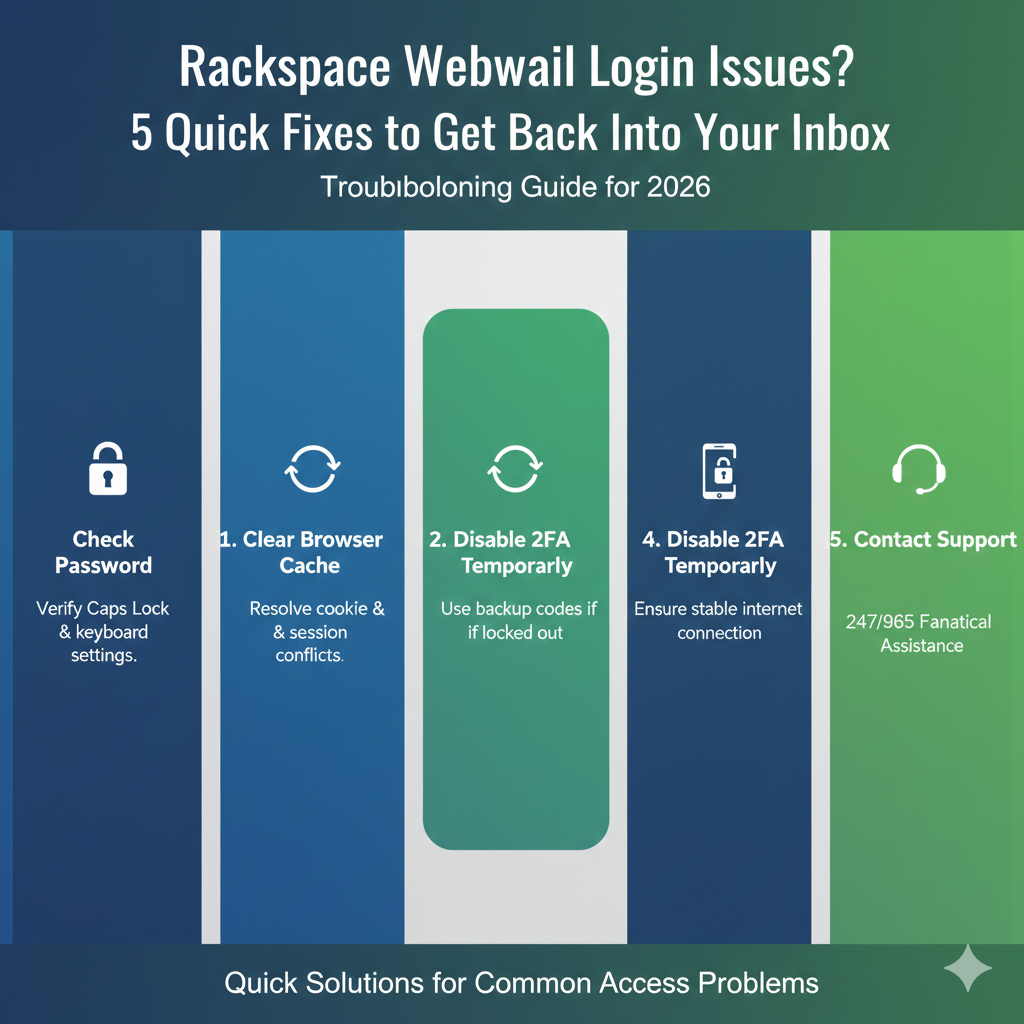
Fix #1 – Verify Username and Password
It sounds obvious, but the vast majority of Rackspace webmail login issues are resolved by double-checking credentials. We often type quickly or rely on autofill, which can easily lead to mistakes.
Check Your Typing and Formatting
First, ensure your Caps Lock key is off. Passwords are case-sensitive. Next, verify that you are entering your full email address as the username. Unlike some personal email services that let you just use the part before the “@” symbol, Rackspace requires the full address (e.g., user@yourdomain.com).
Resetting Your Rackspace Password
If you are certain you are typing the password correctly but still getting an error, it’s time to reset it.
- Go to the Rackspace Webmail login page.
- Look for the “Forgot Password?” link.
- Note: Rackspace Webmail accounts are often managed by your company’s administrator. If you do not see a self-service reset link, or if the reset email never arrives, you likely do not have administrative privileges to reset your own password.
- In this case, contact your IT department or the person in your office who manages email accounts. They will need to log into the Cloud Office Control Panel to reset the Rackspace email password for you.
Fix #2 – Clear Browser Cache and Cookies
If your credentials are correct but the page just spins, reloads, or shows a generic error, your browser cache might be to blame. Browsers save bits of websites (cookies and cache) to speed up future visits. If this saved data becomes outdated or corrupted, it conflicts with the live site.
How to Test This Quickly
Before wiping your history, test if the cache is the problem by opening a Private or Incognito window.
- Chrome:
Ctrl + Shift + N(Windows) orCmd + Shift + N(Mac) - Firefox/Edge:
Ctrl + Shift + P(Windows) orCmd + Shift + P(Mac)
If you can log in successfully in Incognito mode, your main browser’s cache is definitely the issue.
Steps to Clear Browser Cache
To fix webmail login problems related to the browser:
- In Google Chrome: Click the three dots in the top right > More Tools > Clear Browsing Data. Select “Cached images and files” and “Cookies and other site data.”
- In Firefox: Go to Settings > Privacy & Security > Cookies and Site Data > Clear Data.
- In Microsoft Edge: Go to Settings > Privacy, search, and services > Clear browsing data.
After clearing the data, close the browser completely, reopen it, and attempt to log in again.
Fix #3 – Try a Different Browser or Device
Sometimes, a specific browser update can break compatibility with certain web apps. If clearing the cache didn’t work, the next step in email login troubleshooting is to isolate the device or software.
Browser Compatibility
If you typically use Chrome, try opening Rackspace Webmail in Firefox, Microsoft Edge, or Safari. If it works in the alternative browser, the issue is specific to your primary browser settings or extensions.
Extensions and Add-ons
Ad blockers, privacy extensions, and password managers can sometimes aggressively block scripts that are necessary for the login page to function.
- Disable your extensions one by one.
- Refresh the login page.
- If the page loads correctly after disabling a specific extension, you have found the culprit. You can then whitelist the Rackspace URL in that extension’s settings.
Mobile vs. Desktop
If you are on a computer, try logging in via your smartphone’s web browser (not the mail app, but the actual browser like Chrome for Mobile or Safari). If Rackspace webmail browser issues persist across all devices connected to the same WiFi, the problem is likely your network, which brings us to the next fix.
Fix #4 – Check Internet Connection and Firewall Settings
When webmail access is blocked, it isn’t always a software error; it could be a network barrier. This is particularly common if you are working from a public Wi-Fi network (like an airport or hotel) or a highly secure corporate network.
Public Wi-Fi Restrictions
Public networks often block high-bandwidth or specific secure ports to manage traffic. Try disconnecting from Wi-Fi and connecting to your phone’s mobile hotspot. If you can log in via the hotspot, the public Wi-Fi was blocking the connection.
Firewall and Antivirus
If you have robust antivirus software or a firewall installed on your computer, it might be flagging the login page as a false positive threat.
- Temporarily pause your antivirus software.
- Attempt to log in.
- If successful, check your antivirus logs to see if it blocked the connection and add
apps.rackspace.comto the “Safe” or “Allowed” list.
Corporate Firewalls
If you are in an office, your IT team may have updated network rules that inadvertently caused email firewall issues. If colleagues on the same network are also experiencing Rackspace webmail not working, alert your network administrator immediately.
Fix #5 – Check Rackspace Service Status or Account Lock
If you have tried all the above—your password is right, your cache is clear, and your network is fine—the problem might be on Rackspace’s end.
Check Service Status
Before pulling your hair out, check if there is a known outage. Rackspace maintains a System Status page.
- Search for “Rackspace System Status.”
- Look for the “Email & Collaboration” section.
- If you see red or yellow indicators next to “Rackspace Email,” there is a system-wide issue. In this case, you just have to wait for their engineers to fix it.
Account Lockouts
Security is a priority for email hosts. If you (or someone trying to hack you) entered the wrong password too many times, Rackspace may lock the account for a set period.
- The Fix: Wait 30 minutes without attempting to log in. This usually resets the lock.
- The Admin Fix: If the account remains locked, an administrator needs to log into the Control Panel and manually unlock the user account.
When to Contact Rackspace Support
If you have exhausted this troubleshooting guide and still cannot access your email, it is time to escalate. However, it is important to know who to contact.
- If you are an employee: You usually cannot contact Rackspace support directly for password resets or account unlocks. You must contact your company’s IT administrator. Rackspace support generally requires account verification that only the account owner (the business owner or IT admin) can provide.
- If you are the administrator: You have access to 24/7 support. You can start a live chat via your Cloud Office Control Panel or call their support line.
Have the following ready:
- Your account number.
- The specific error message you are seeing (screenshots are helpful).
- A list of the troubleshooting steps you have already tried.
How to Prevent Future Rackspace Webmail Login Issues
Once you are back in, you want to ensure you stay in. Here are a few best practices to ensure a secure webmail login experience moving forward.
Use a Password Manager
Stop relying on memory or sticky notes. A password manager (like LastPass, 1Password, or Bitwarden) ensures you always input the correct, complex credentials. This prevents account lockouts caused by guessing your own password.
Keep Your Browser Updated
Browser updates often contain security patches that ensure compatibility with modern web applications. If you are running a version of Chrome from three years ago, you will eventually face preventable email login problems.
Bookmark the Correct URL
Phishing sites often try to look like the Rackspace login page. To ensure you never accidentally hand over your credentials to a fake site, bookmark the official login URL (https://apps.rackspace.com) and only access your email through that bookmark.
FAQ – Rackspace Webmail Login Issues
Below are answers to the most frequently asked questions regarding login difficulties.
Q1: Why can’t I log into Rackspace Webmail?
Common reasons include entering an incorrect email or password, a corrupted browser cache, outdated browser software, or a poor internet connection. Occasionally, the account may be locked due to too many failed attempts, or Rackspace itself may be experiencing a service outage.
Q2: How do I reset my Rackspace Webmail password?
If you are a standard user, click the “Forgot Password” link on the login page. If that option is unavailable, you must contact your company’s email administrator. Administrators can reset passwords via the Cloud Office Control Panel by selecting the user and choosing “Change Password.”
Q3: Is Rackspace Webmail down right now?
To verify if Rackspace is experiencing an outage, visit the official Rackspace System Status page. Look under the “Email & Collaboration” tab for any reported incidents affecting Webmail services.
Q4: Does Rackspace block logins from certain locations?
By default, Rackspace allows logins from most locations. However, your company’s administrator can set up “IP Restrictions” or “Geo-blocking” to prevent logins from countries where you do not do business. If you are traveling internationally and can’t log in, check with your admin.
Q5: Can browser extensions cause webmail login problems?
Yes. Ad-blockers, privacy tools, and some script-blocking extensions can interfere with the functionality of the Webmail login page. Try disabling extensions or using Incognito/Private mode to see if that resolves the issue.
Q6: How do I contact Rackspace support for login issues?
If you are the account administrator, you can contact support via phone or live chat through your Control Panel dashboard. If you are an employee, you must contact your internal IT department or help desk, as Rackspace support generally deals directly with account holders for security reasons.
Resolving Your Access Issues
Losing access to your email is stressful, but it’s rarely a permanent problem. By systematically verifying your credentials, clearing your browser data, and checking your network connection, you can resolve the vast majority of login hiccups in minutes.
If you found this guide helpful, bookmark it for the next time technology decides to misbehave. And if you are still stuck, don’t hesitate to reach out to your IT administrator—getting you back online is what they are there for.