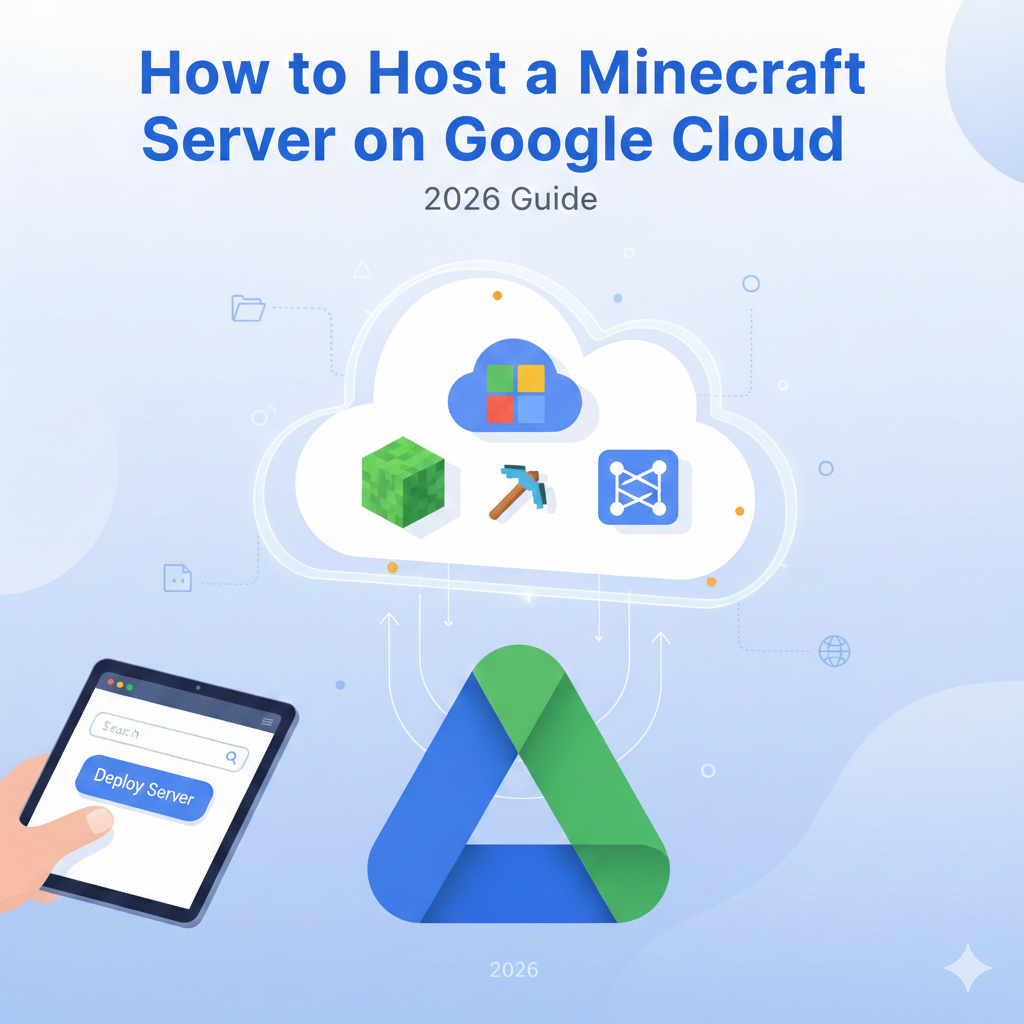
How to Host a Minecraft Server on Google Cloud (2026 Guide)
Running a Minecraft server locally on your own computer is great for testing, but it has major limitations. Your PC has to be on constantly, your home internet bandwidth gets eaten up, and friends can only join when you’re online. If you want a 24/7 world where you and your friends can build empires without lag or downtime, moving to the cloud is the ultimate upgrade.
Hosting on Google Cloud Platform (GCP) might sound intimidating if you aren’t a developer, but it’s actually one of the most reliable ways to run a server. You get enterprise-grade hardware, incredible uptime, and the ability to scale your server’s power up or down instantly. Plus, unlike generic paid hosting services that lock you into specific slots or RAM limits, a cloud server gives you total control over every file and setting.
In this guide, we will walk you through exactly how to set up a high-performance Minecraft server on Google Cloud. We’ve designed this specifically for beginners—so even if you’ve never used a command line or a cloud dashboard before, you’ll be punching trees with your friends in no time.
Why Host a Minecraft Server on Google Cloud?
When looking for a home for your digital world, you generally have three options: self-hosting at home, renting from a dedicated Minecraft host (like Apex or Shockbyte), or setting up a Virtual Private Server (VPS) on a cloud provider like Google Cloud. Here is why the cloud route often wins.
Benefits Over Shared and Local Hosting
Total Control: With shared hosting, you are often restricted. You might not have root access to the system, making it hard to install specific mods or Java versions. On Google Cloud, you are renting a raw virtual computer. You are the administrator. You can install any version of Java, run any server jar (Vanilla, Paper, Fabric, Forge), and tweak the operating system to your liking.
Reliability: Home hosting relies on your residential internet connection. If your ISP has a hiccup or your little brother starts downloading a 100GB game, your server lags. Google Cloud runs on Google’s massive, lightning-fast fiber optic network. This means lower latency (ping) for players and virtually 100% uptime.
No Hardware Wear and Tear: Running a server 24/7 generates heat and consumes electricity. By offloading this to Google, you save your personal hardware from the strain of constant operation.
Performance, Scalability, and Global Access
One of the biggest advantages of Google Cloud is scalability. In the beginning, you might only need a small server for three friends. But what if your community grows to 50 people?
On a physical machine, you’d need to buy new RAM sticks. On Google Cloud, you literally click a few buttons to “resize” your Virtual Machine (VM) to add more CPU cores and RAM instantly.
Furthermore, Google has data centers all over the world—from Iowa to Frankfurt to Tokyo. You can choose a server location physically closest to your player base, ensuring the smoothest possible connection and minimal lag.
What You Need Before Getting Started
Before we dive into the technical setup, let’s make sure you have everything ready.
Google Cloud Account Requirements
You will need a Google account. If you have never used Google Cloud before, you are in for a treat: Google often offers a $300 free credit for new customers tailored for 90 days. This is usually more than enough to run a powerful Minecraft server for free for a few months while you learn the ropes.
To sign up, visit the Google Cloud Console and attach a credit card for identity verification. Don’t worry; you won’t be charged unless you exceed your free credits, and you can set up budget alerts (which we will cover later).
Minecraft Java vs Bedrock Considerations
This guide focuses on Minecraft: Java Edition, which is the original version played on PC/Mac/Linux.
If you want to play with friends on consoles (Xbox, PS5, Switch) or mobile, you need a Bedrock server. The steps for setting up the VM are identical, but the server software you download in the later steps will be different (you would use the Bedrock server software instead of the Java jar).
Estimated Monthly Costs
Cost is the biggest question mark for beginners. Unlike a flat $5/month fee from a shared host, cloud pricing is “pay-as-you-go.”
For a standard vanilla server for 5-10 players, a machine with 2 vCPUs and 4GB-8GB of RAM (like the e2-standard-2 instance) usually costs around $25-$50 per month if left running 24/7. However, if you turn the server off when no one is playing, you only pay for the storage, which is pennies on the dollar.
Step-by-Step: How to Host a Minecraft Server on Google Cloud
Let’s build your server. We will create a virtual computer, install the necessary software, and get Minecraft running.
Create a Virtual Machine (VM)
The “computer” you are renting in the cloud is called a VM Instance.
- Go to the Compute Engine: Log in to the Google Cloud Console. In the top-left menu (the “hamburger” icon), go to Compute Engine > VM instances.
- Create Instance: Click the Create Instance button at the top.
- Name Your Server: Give it a name like
minecraft-server.
Recommended VM Specs for Minecraft
Minecraft is single-threaded heavy, meaning faster CPU cores are better than more CPU cores.
- Machine Family: Choose General Purpose.
- Series: The E2 series is a great budget-friendly balance.
- Machine Type: Select e2-standard-2 (2 vCPUs, 8 GB memory). This is a solid starting point for a lag-free experience for a small group. If you are on a strict budget, the
e2-medium(4GB ram) works for very small vanilla servers, but 8GB gives you breathing room.
Choosing Regions and OS
- Region: Select a region close to you and your friends. If you are in New York, choose
us-east1. If you are in London, chooseeurope-west2. - Boot Disk: Scroll down to the “Boot disk” section and click Change.
- Operating System: Select Ubuntu.
- Version: Select Ubuntu 24.04 LTS (or the latest LTS version available). It is stable and has the most tutorials online.
- Disk Type: Switch to SSD Persistent Disk for faster load times.
- Size: 20GB is plenty for the OS and a large Minecraft world.
Click Select, and then click Create at the bottom of the page. After a minute, your new VM will appear in the list with a green checkmark.
Install Java and Required Dependencies
Now we need to log into your new computer and set up the environment.
- Connect via SSH: In your VM instances list, look for the SSH button on the far right of your server row. Click it. A black window will pop up—this is your server’s command line.
- Update the System: Type the following command and hit Enter to make sure your Linux is up to date:sudo apt update && sudo apt upgrade -y
Java Version Compatibility
Minecraft 1.21 and later requires Java 21. If you are playing an older version (like 1.16.5), you might need Java 8 or 16. Assuming you are playing the latest version, install the headless Java Development Kit (headless means it doesn’t have a graphical interface, which saves resources).
- Install Java:sudo apt install openjdk-21-jre-headless -y
- Verify Installation:java -version
You should see an output confirmingopenjdk version "21...".
Server Environment Setup
It is best practice to keep your server files organized.
- Create a Folder:mkdir minecraft
cd minecraft
You are now inside theminecraftdirectory.
Download and Configure the Minecraft Server
You need the actual Minecraft server software. You can download the official server.jar from Mojang, but for better performance, we highly recommend PaperMC. It is fully compatible with vanilla Minecraft but optimized to run much faster.
Server JAR File Setup
- Find the Link: Go to the PaperMC website on your regular browser. Right-click the latest download button and choose “Copy Link Address.”
- Download to VM: Go back to your SSH window. Type
wgetfollowed by the link you copied. It will look something like this:wget https://api.papermc.io/v2/projects/paper/versions/1.21/builds/123/downloads/paper-1.21-123.jar - Rename the File: To make future commands easier, rename the file to just
server.jar:mv paper-*.jar server.jar
Accepting the EULA
Minecraft won’t run until you agree to the rules.
- Run the Server Once:java -Xmx4G -Xms4G -jar server.jar nogui
Note:4Gtells the server to use 4GB of RAM. Adjust this based on your VM size (leave about 1-2GB for the OS). - It Will Fail: The server will shut down immediately saying you need to agree to the EULA.
- Edit the EULA:nano eula.txt
Use your arrow keys to changeeula=falsetoeula=true. - Save and Exit: Press
Ctrl + OthenEnterto save, andCtrl + Xto exit.
Basic server.properties Tuning
You can now customize your world settings.
- Open Properties:nano server.properties
- Edit Settings: Here you can change the difficulty, max players, or view distance.
- Tip: Lowering
view-distancefrom 10 to 8 or 7 can significantly improve performance on smaller servers. - Ensure
online-mode=trueis set (it usually is by default) to prevent hackers or pirated clients from joining.
- Tip: Lowering
Save and exit (Ctrl + O, Enter, Ctrl + X).
Configure Firewall Rules and Ports
Your server is ready, but Google Cloud’s firewall is blocking outside connections by default. We need to open the door for Minecraft traffic.
Opening Port 25565
- Go back to the main Google Cloud Console tab in your browser.
- Search for Firewall in the top search bar and select VPC network > Firewall.
- Click Create Firewall Rule.
- Name:
minecraft-rule - Targets: Select All instances in the network.
- Source IPv4 ranges: Type
0.0.0.0/0(this allows anyone to connect). - Protocols and ports: Check TCP and type
25565. Also check UDP and type25565(UDP is helpful for certain modded setups and query protocols).
- Name:
- Click Create.
Securing Your Server
While 0.0.0.0/0 allows everyone to join, you should rely on the in-game Allowlist to keep griefers out.
In your SSH terminal (once the server is running), type:
/whitelist on
/whitelist add YourUsername
/whitelist add FriendUsername
How to Start and Manage Your Minecraft Server
Now comes the fun part: launching the world.
Starting and Stopping the Server Safely
To start the server, use the Java command we used earlier:
java -Xmx4G -Xms4G -jar server.jar nogui
Your server will boot up. Once it says “Done!”, copy the External IP address from your VM Instances dashboard, paste it into Minecraft Multiplayer, and join!
To stop the server, type stop in the console. Never just close the SSH window or force-stop the VM without typing stop first, or you might corrupt your world save.
Using SSH for Server Management
The problem with the command above is that if you close the SSH window, the server stops. To keep it running in the background, use a tool called Screen.
- Install Screen:
sudo apt install screen -y - Start a Screen Session:
screen -S minecraft - Run the Server:
java -Xmx4G -Xms4G -jar server.jar nogui - Detach: Press
Ctrl + A, thenD. This leaves the server running in the background while you do other things. - Resume: To see the server console again later, type
screen -r minecraft.
Automatic Startup Scripts
Ideally, you want the server to start automatically if the VM reboots. You can create a script file (start.sh) containing your Java command, and add it to your crontab.
- Create Script:
nano start.sh - Add Command:#!/bin/bash
cd /home/YOUR_USERNAME/minecraft
screen -dmS minecraft java -Xmx4G -Xms4G -jar server.jar nogui - Make Executable:
chmod +x start.sh - Edit Crontab:
crontab -eand add@reboot /home/YOUR_USERNAME/minecraft/start.shat the bottom.
Adding Mods and Plugins
Vanilla is classic, but mods add flavor.
Vanilla vs Modded Servers
If you want plugins (like WorldEdit, Essentials, GriefPrevention), stick with Paper or Spigot. You drag .jar files into the plugins folder.
If you want mods (new biomes, machinery, magic), you need Forge or Fabric.
Installing Forge or Fabric
- Go to the Fabric or Forge website and download the “Installer” for Linux/Server.
- Upload it to your server using a tool like WinSCP or FileZilla (connect using SFTP with your Google Cloud SSH key).
- Run the installer via Java:
java -jar fabric-installer.jar server. - This creates a new jar file to launch instead of
server.jar.
Performance-Friendly Plugins
Even on high-end cloud hardware, lag happens. Install these plugins on Paper/Spigot servers to keep things smooth:
- Spark: The best reliable profiler to see what is causing lag.
- ClearLag: Helps remove entity clutter (be careful configuring this so it doesn’t delete your animals).
- Chunky: Pre-generates the world. This is the #1 tip for lag. By pre-loading the map, the server doesn’t have to generate terrain while you explore.
Performance Optimization & Cost Control
Running a server on the cloud is powerful, but you don’t want a surprise bill.
Reducing Lag and Memory Usage
If your server struggles, check your startup flags. The “Aikar’s Flags” set is a famous collection of Java arguments that optimize garbage collection. Replace your basic startup command with Aikar’s recommended string for a smoother experience.
Also, aggressively lower your simulation distance in server.properties. Setting this to 6 or 8 keeps the server focused only on what matters near players.
VM Scaling Strategies
Is your server lagging with 10 players? You don’t need to reinstall anything.
- Stop the server (
stop). - Stop the VM instance in Google Cloud Console.
- Click the instance name, then Edit.
- Change the Machine Type to
e2-standard-4(4 vCPUs, 16GB RAM). - Save and Start.
You just doubled your power in 2 minutes.
Avoiding Unnecessary Cloud Costs
Turn it off when not in use!
This is the golden rule. If you and your friends only play on weekends, stop the VM instance during the week. You will only be charged for the storage (about $2/month for the disk) rather than the hourly compute rate.
You can even use the Google Cloud Mobile App to start the server from your phone right before you get home.
Security and Backup Best Practices
You’ve spent hours building that castle. Don’t lose it.
Regular World Backups
Don’t rely on the cloud not to fail.
- Manual: Regularly zip your
worldfolder and download it to your PC using WinSCP. - Automated: Write a script to zip the world folder and upload it to a Google Cloud Storage Bucket automatically every night. Storage buckets are incredibly cheap and durable.
Access Control and IP Protection
We already set up a Whitelist, which protects the game. To protect the server, ensure your SSH keys are secure. Never share your Google Cloud login. If possible, restrict the SSH firewall rule to only allow connections from your specific home IP address, rather than 0.0.0.0/0.
Monitoring Uptime
Google Cloud has an “Observability” tab. Check the CPU utilization graph. If your server is constantly hitting 90-100% CPU, it’s time to upgrade the instance type or remove some heavy mods.
Common Issues and Troubleshooting
Server Not Starting
- Check Java: Did you install Java 21? Run
java -version. - Check EULA: Did you edit
eula.txttotrue? - Check RAM: Did you allocate more RAM in the command (
-Xmx) than the VM actually has? Remember the OS needs memory too.
Connection and Timeout Errors
- Check IP: IPs on Google Cloud can change if you stop/start the server unless you reserve a “Static External IP” in the Networking menu (recommended for long-term servers).
- Check Firewall: Did you definitely click “Create” on the firewall rule 25565?
High CPU or RAM Usage
If RAM usage is high, that’s actually good—Java grabs what it needs. If CPU is high, try pre-generating chunks with the Chunky plugin. Generating new terrain is the most CPU-intensive task in Minecraft.
FAQs – Minecraft Server Hosting on Google Cloud
Is Google Cloud free for Minecraft servers?
Google Cloud offers a $300 credit for new users effectively making it free for the first 3 months. After that, Google offers an “Always Free” tier for very small e2-micro instances, but these are generally too weak to run a playable modern Minecraft server. You will likely need to pay for a larger instance eventually.
How much does a Minecraft server cost per month?
For a decent experience (e2-standard-2), expect to pay roughly $0.067 per hour. If you run it 24/7, that’s about $48/month. If you only run it 4 hours a day, it’s closer to $8/month.
Can I run mods on Google Cloud?
Absolutely. You have full root access to the file system, so you can install Forge, Fabric, huge modpacks (like RLCraft or All The Mods), and any plugins you want.
Is Google Cloud good for long-term Minecraft hosting?
Yes. It offers better uptime and stability than almost any budget Minecraft host. However, it requires more hands-on maintenance for updates and backups compared to managed services.
What are cheaper alternatives to Google Cloud?
If the “pay-as-you-go” model is too expensive, consider a dedicated Minecraft host like PebbleHost or Bloom.host, or a cheaper cloud VPS provider like Linode or DigitalOcean, which offer flat monthly rates.
Conclusion
Hosting your own Minecraft server on Google Cloud is a rite of passage. It moves you from being just a player to being a server administrator. You gain performance, reliability, and the ultimate freedom to customize your world exactly how you want it.
The learning curve might seem steep at first, but the skills you learn here—SSH, Linux commands, networking—are real-world tech skills that apply far beyond just Minecraft.
So, fire up that terminal, invite your friends, and start crafting. The cloud is yours to command.