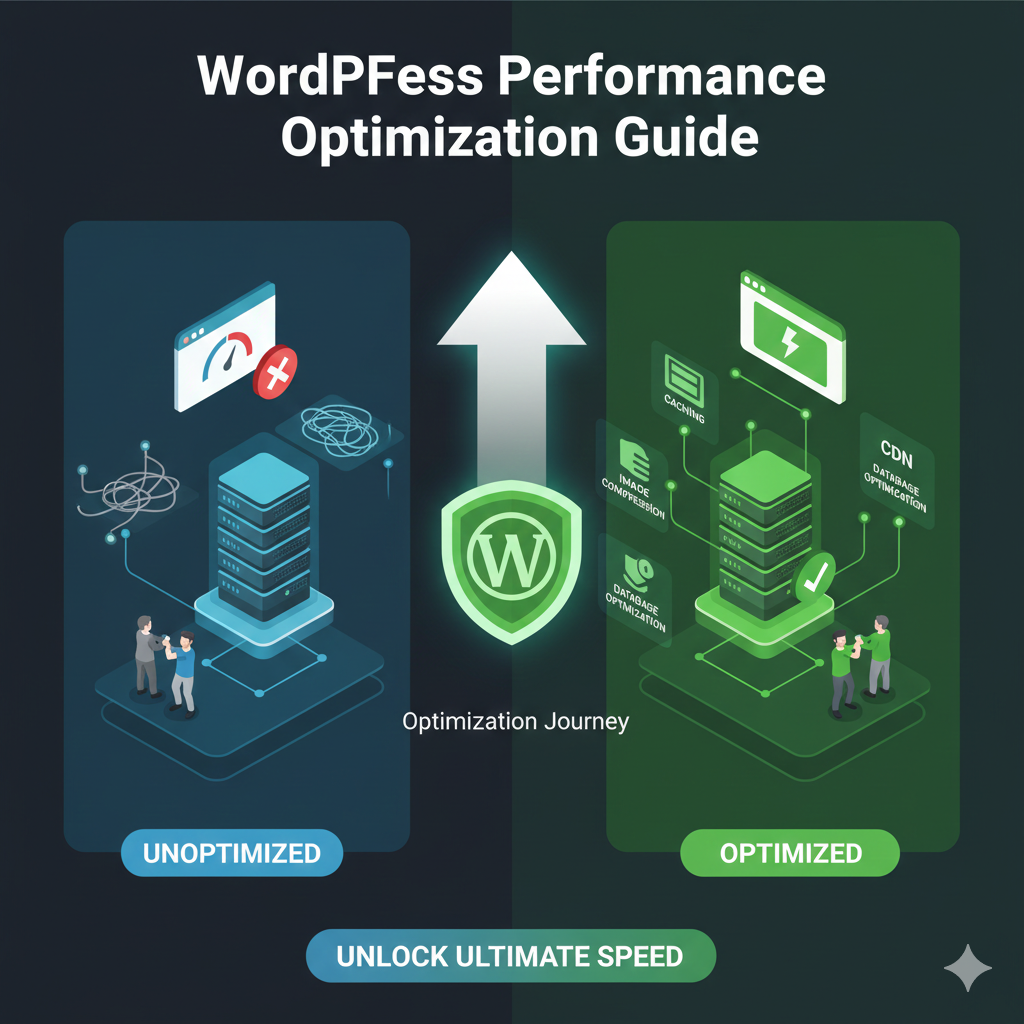
WordPress Performance Optimization Guide 2026
In the digital landscape of 2026, speed is no longer just a luxury—it is the currency of the web. Users expect instant gratification, and search engines demand efficiency. If your WordPress site lags, your visitors will leave, and your rankings will plummet. It really is that simple.
WordPress powers a massive portion of the internet, but its flexibility can sometimes come at the cost of performance. Out of the box, it’s functional, but rarely optimized for the lightning-fast speeds required by modern Core Web Vitals standards. Bloated themes, unoptimized images, and sluggish hosting can turn a powerful CMS into a digital tortoise.
This guide is your roadmap to a faster site. We aren’t just looking at basic tweaks; we are covering a comprehensive strategy for WordPress performance optimization. From selecting the right infrastructure to fine-tuning the database and leveraging advanced caching, we will walk through the steps necessary to make your site fly. Whether you are running a personal blog or a high-traffic WooCommerce store, this guide will help you achieve the speed your users deserve.
Understanding WordPress Performance Metrics
Before you can fix your site speed, you need to understand how it is measured. In 2026, Google’s Core Web Vitals remain the gold standard for user experience and SEO. These metrics don’t just measure how fast a page loads; they measure how fast it feels to the user.
Core Web Vitals Explained
Google focuses on three specific pillars of user experience. Mastering these is essential for page speed optimization.
- Largest Contentful Paint (LCP): This measures loading performance. It marks the point in the page load timeline when the page’s main content (usually a hero image or H1 heading) has likely loaded. To provide a good user experience, LCP should occur within 2.5 seconds of when the page first starts loading.
- Interaction to Next Paint (INP): Replacing the older First Input Delay (FID), INP assesses responsiveness. It measures the latency of every interaction a user has with the page (clicks, taps, and keyboard inputs). A low INP means the page responds quickly to user input. You want an INP of 200 milliseconds or less.
- Cumulative Layout Shift (CLS): This measures visual stability. Have you ever gone to click a button, but an image loaded late and pushed the button down, causing you to click the wrong thing? That is a layout shift. A good CLS score is 0.1 or less.
Beyond Core Web Vitals: TTFB
While not a Core Web Vital, Time to First Byte (TTFB) is critical for WordPress performance optimization. It measures the time between the browser requesting a page and when it receives the first byte of information from the server.
A slow TTFB usually points to server-side issues: slow hosting, a lack of caching, or an unoptimized database. If your server takes two seconds just to start sending data, it is mathematically impossible to achieve a good LCP score. Aim for a TTFB under 800ms (ideally under 200ms).
Choosing the Right Hosting for WordPress Speed
The foundation of any fast website is its hosting. No amount of plugin tweaking can overcome a slow server. In 2026, the gap between budget shared hosting and premium managed solutions has widened significantly in terms of performance impact.
Shared vs. VPS vs. Managed WordPress Hosting
- Shared Hosting: This is the entry-level option where your site shares resources (CPU, RAM) with hundreds of other sites. While cheap, it is often the biggest bottleneck for performance. “Bad neighbors” on the same server can slow your site down.
- VPS (Virtual Private Server): A VPS gives you dedicated resources within a shared environment. It is faster and more stable than shared hosting but often requires more technical knowledge to manage effectively.
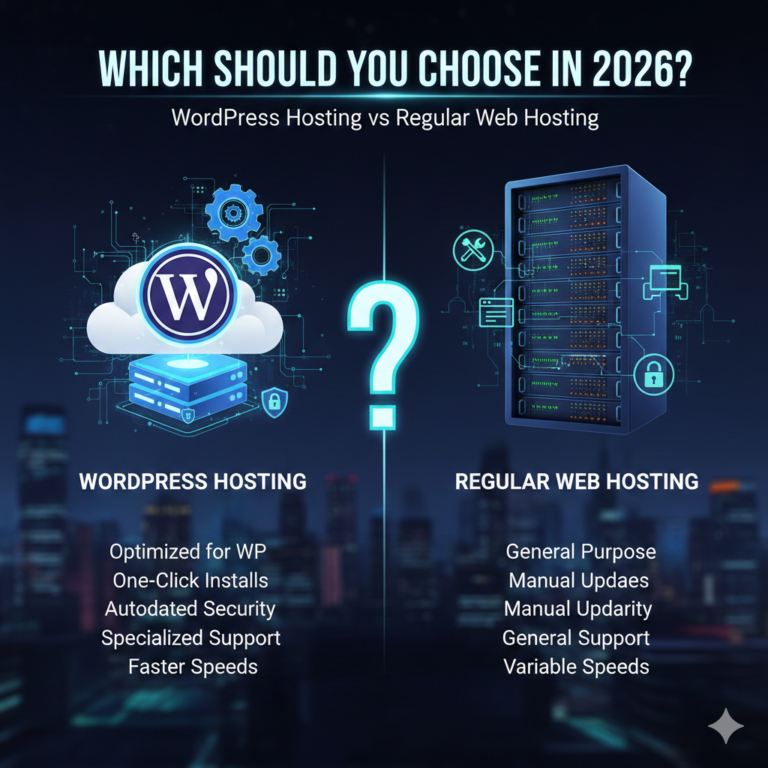
- Managed WordPress Hosting: For most serious business owners and marketers, this is the sweet spot. Providers like Kinsta, WP Engine, and Rocket.net configure their servers specifically for WordPress. They include server-level caching, security patches, and the latest PHP versions automatically. This is often the fastest WordPress hosting route because the infrastructure is purpose-built for the CMS.
Server Location and CDN Impact
Physics still applies to the internet. Data has to travel through cables. If your server is in New York but your user is in Berlin, that distance creates latency.
Always choose a data center closest to your primary audience. If you target a global audience (US, UK, Germany), you cannot rely on a single server location. This is where a Content Delivery Network (CDN) becomes non-negotiable. A CDN stores copies of your static assets (images, CSS, JS) on servers around the world, delivering them to users from the closest possible location.
Optimizing WordPress Themes and Page Builders
Your theme determines the structure of your site, and consequently, how much code needs to be loaded.
The Rise of Lightweight Themes
In the past, “multipurpose” themes were popular because they included every feature imaginable. Today, we know that these themes are often bloated with unused code.
For optimal WordPress page speed, stick to lightweight WordPress themes. Themes like GeneratePress, Kadence, and Astra are built with performance in mind. They offer modularity, meaning code for a specific feature only loads if you are actually using that feature.
Block Editor vs. Page Builders
Page builders like Elementor and Divi revolutionized WordPress design, but they can add significant weight to the DOM (Document Object Model). Excessive nesting of div tags can increase memory usage and slow down rendering.
The native WordPress Block Editor (Gutenberg) has matured significantly by 2026. It is faster and cleaner than third-party builders because it generates standardized HTML. If you must use a page builder for design flexibility, ensure you are using its built-in performance settings (like Elementor’s “Optimized DOM Output”) and strip unused CSS/JS.
Plugin Optimization: Reduce Bloat Without Losing Features
There is a common myth that “too many plugins” slows down a site. In reality, it is not the number of plugins, but the quality and functionality of them. One poorly coded plugin can do more damage than 50 lightweight ones.
Identifying Slow Plugins
How do you know which plugins are the culprits? You can use tools like Query Monitor. This plugin allows you to view database queries, PHP errors, and API calls triggered by your plugins. If a specific plugin is taking seconds to execute database queries on every page load, it needs to be replaced.
Must-Have Performance Plugins
While we want to reduce bloat, some plugins exist specifically to speed up WordPress.
- Caching Plugin: (e.g., WP Rocket, FlyingPress, or W3 Total Cache). Essential for generating static HTML files.
- Image Optimizer: (e.g., ShortPixel, Imagify). Compresses media automatically.
- Asset Cleanup: (e.g., Perfmatters). Allows you to disable scripts on a per-page basis. For example, you don’t need your contact form script loading on every blog post.
Pro Tip: Audit your plugins monthly. If you have a plugin that you haven’t used in 30 days, deactivate and delete it. Reduce WordPress plugins to only what is strictly necessary for your business operations.
Image, Media & Asset Optimization
Images are usually the heaviest assets on a webpage. Unoptimized images are the leading cause of poor LCP scores.
Image Compression and Next-Gen Formats
Never upload raw images directly from a camera or stock photo site. These files are often 5MB or larger, whereas a web image should rarely exceed 200KB.
Use tools to optimize images for WordPress automatically. Modern compression algorithms can reduce file size by 80% without visible loss of quality. Furthermore, serve images in WebP or AVIF formats. These next-gen formats offer superior compression compared to traditional JPEGs or PNGs. Most optimization plugins now handle this conversion on the fly.
Lazy Loading and Video Optimization
Lazy loading delays the loading of images and videos until the user actually scrolls down to them. This ensures the browser can focus on loading the critical content at the top of the page (the viewport) first.
For videos, avoid hosting them directly on your WordPress server. Video files chew through bandwidth and storage. Instead, embed videos from specialized hosting platforms like YouTube, Vimeo, or Wistia. If you use a background video, ensure it is extremely compressed and short, or consider using a static image for mobile users to save bandwidth.
Caching, CDN & Database Optimization
If hosting is the foundation, caching is the framing. It is the most effective way to improve TTFB and overall responsiveness.
Page Caching and Object Caching
- Page Caching: This saves the dynamically generated HTML of your page on the disk or memory. When a visitor arrives, the server serves this pre-built HTML file instead of processing PHP and querying the database again. This is essential for WordPress caching.
- Object Caching: While page caching helps the frontend, object caching (using Redis or Memcached) helps the backend. It stores the results of complex database queries. If your site runs heavy queries (like a filtered product search on WooCommerce), object caching prevents the database from working overtime.
Database Cleanup and Optimization
Over time, your WordPress database accumulates junk: post revisions, spam comments, transient options, and orphaned metadata. This “overhead” makes database queries slower.
Regular WordPress database optimization is crucial. You can use plugins like WP-Optimize or Advanced Database Cleaner to scrub this data. Always back up your database before running a cleanup operation. Limit post revisions to 3-5 per post to prevent your wp_posts table from ballooning unnecessarily.
Advanced Performance Tweaks for Power Users
For those looking to eke out every millisecond of performance, server-level and protocol optimizations are the next frontier.
PHP Versions and Server-Level Optimizations
WordPress runs on PHP. Each new version of PHP is significantly faster and more secure than the last. Ensure your host is running PHP 8.2 or higher. If you are stuck on PHP 7.4, you are voluntarily running your site slower than necessary.
Additionally, increasing your memory_limit in the wp-config.php file (e.g., to 256MB or 512MB) can help prevent fatal errors and improve the execution of heavy scripts.
HTTP/3, Brotli, and Edge Caching
- HTTP/3: The latest version of the HTTP protocol uses QUIC, which reduces latency significantly, especially on unstable mobile networks. Check if your host and CDN support HTTP/3.
- Brotli Compression: Brotli is a compression algorithm developed by Google that is superior to the older Gzip standard. It makes text-based files (HTML, CSS, JS) smaller, allowing them to travel across the network faster.
- Edge Caching: Traditional CDNs serve static assets. Edge caching serves the entire HTML page from the CDN server. This means a user in London gets the full website delivered from a London server, even if your origin server is in Texas. This creates near-instant load times globally.
Performance Optimization for WooCommerce Sites
WooCommerce presents unique challenges because it is dynamic. You cannot cache the cart, checkout, or “My Account” pages, or users would see each other’s data.
Checkout Speed
Checkout speed directly correlates to conversion rates. To ensure a fast checkout:
- Disable fragments: AJAX cart fragments can slow down your site significantly. Use a plugin to disable cart fragmentation on non-WooCommerce pages.
- Payment Gateways: Load payment scripts only on the checkout page.
- Fast WooCommerce Hosting: Ensure your host offers adequate CPU power. WooCommerce is database-heavy; shared hosting usually crumbles under the weight of a busy store.
Handling Traffic Spikes
If you run sales (like Black Friday), you need an infrastructure that scales. Isolated container technology (used by premium managed hosts) ensures that a spike in traffic doesn’t crash your server. Implementing a queue system for high-demand drops can also prevent server overload.
How to Measure and Monitor WordPress Performance
Optimization is not a one-time task; it is a routine maintenance habit. You need accurate data to make informed decisions.
Tools and Benchmarks
- Google PageSpeed Insights: Provides detailed Lab Data (simulated) and Field Data (real user data via Chrome UX Report).
- GTmetrix: Great for seeing waterfall charts to understand which specific assets are slowing down load time.
- WebPageTest: Offers advanced settings, allowing you to simulate different connection speeds and locations (e.g., testing from Frankfurt on a 4G connection).
Ongoing Optimization Checklist
Website performance monitoring should be part of your monthly workflow:
- Check Core Web Vitals in Google Search Console.
- Run a database cleanup.
- Update PHP versions (if available).
- Audit plugins and remove unused ones.
- Test site speed after any major theme or plugin update.
Faster WordPress = Better Rankings & Conversions
The correlation between speed and success is undeniable. In 2026, users have zero patience for slow interfaces. By implementing a robust WordPress performance optimization strategy—covering hosting, caching, image optimization, and database maintenance—you are doing more than just pleasing algorithms. You are building a better experience for your human visitors.
A faster site builds trust, keeps users engaged, and encourages them to convert. Start with the low-hanging fruit like caching and image compression, and work your way up to server-side tweaks. The effort you put into speed today will pay dividends in traffic and revenue tomorrow.
Frequently Asked Questions (FAQ)
How do I speed up my WordPress website?
To speed up your WordPress site, start by choosing high-quality managed hosting. Then, install a caching plugin (like WP Rocket), optimize your images using next-gen formats like WebP, use a lightweight theme, and set up a Content Delivery Network (CDN). Regular database cleanup and removing unused plugins also help significantly.
What is the best hosting for WordPress performance?
The best hosting for performance is typically Managed WordPress Hosting. Providers like Kinsta, Rocket.net, and WP Engine are top-tier choices because they use server-level caching, isolated resources (meaning you don’t share performance with other sites), and Google Cloud’s fastest servers. Avoid cheap shared hosting if speed is a priority.
Which plugins slow down WordPress the most?
Plugins that run ongoing background processes, send remote requests, or load excessive scripts on every page tend to slow down WordPress. Common culprits include heavy social sharing plugins, broken link checkers (run these manually instead), and complex page builders with too many add-ons. Use a tool like Query Monitor to identify the specific plugins dragging down your site speed.
How do Core Web Vitals affect WordPress SEO?
Core Web Vitals are a confirmed ranking factor for Google. If your site fails the LCP (loading), INP (responsiveness), or CLS (visual stability) tests, Google may rank your site lower than a competitor with a faster, more stable site. Good scores act as a “tie-breaker” in search rankings and ensure a better user experience, which reduces bounce rates.
Is a CDN necessary for WordPress speed?
If your audience is local (e.g., a plumber in a single city), a CDN is helpful but not strictly necessary. However, if you have a national or global audience, a CDN is absolutely necessary. It reduces latency by serving your website’s files from servers physically closer to the user, drastically improving load times for international visitors.
How often should I optimize my WordPress database?
For most websites, optimizing the database once a month is sufficient. However, for high-traffic WooCommerce stores or active blogs with many daily comments and post revisions, you might want to perform a cleanup weekly. You can automate this process using