
What Is a Content Management System (CMS)? Complete Beginner Guide
For anyone who has ever wanted to build a website but felt intimidated by the idea of writing lines of code, a Content Management System (CMS) is the solution you’ve been looking for.
In the early days of the internet, creating a website required a deep understanding of HTML, CSS, and JavaScript. Every time you wanted to update a paragraph or add an image, you had to dive into the raw code. It was technical, time-consuming, and not very user-friendly.
Today, CMS platforms power most websites on the internet. From personal blogs and small business portfolios to massive news outlets and ecommerce stores, these systems have democratized web publishing. They allow you to create, manage, and modify content on a website without the need for specialized technical knowledge.
In this complete guide, we will break down exactly what a content management system is, how it works, and why it is the backbone of the modern web. Whether you are a student, a budding entrepreneur, or just curious about web development, this guide will give you the foundation you need.
See also: The Evolution of Web Hosting: From Shared Servers to Cloud Infrastructure
What Is a Content Management System (CMS)?
At its core, a Content Management System (CMS) is a software application that helps users build and manage a website without having to code it from scratch.
Think of it as the interface between you and the complex code that makes a website function. Instead of writing commands to display text or images, you use a dashboard that looks similar to a word processor. You type your text, upload your photos, and click “Publish.” The CMS handles all the technical heavy lifting in the background to display your content to the world.
The Core Purpose of a CMS
The CMS meaning goes beyond just “managing content.” Its primary purpose is to streamline web infrastructure. It separates the content (your words and images) from the presentation (the design and layout). This means you can change the look of your entire site by switching a theme, without losing any of your blog posts or pages.
In simple terms: CMS explained is “infrastructure in a box.” It provides you with the tools to focus on what you want to say, rather than how to code the page to say it.
Content Management System Definition in Action
If you look at some of the most famous websites in the world, you are likely looking at a CMS.
- The White House website: Powered by WordPress.
- Huge ecommerce stores: Often powered by Shopify or Magento.
- University portals: Frequently built on Drupal.
These platforms allow non-technical staff to update news, add products, and change information instantly.
How Does a CMS Work?
To understand how a CMS works, it helps to visualize a website as a two-part system. In a traditional HTML site, the content and the design are hard-coded together. In a CMS architecture, they are distinct layers that communicate with each other.
Backend vs. Frontend
A CMS consists of two major components:
- Content Management Application (CMA): This is the “backend” or the dashboard where you log in. It is the interface that allows you to add and manage content. If you can use Microsoft Word or Google Docs, you can use a CMA.
- Content Delivery Application (CDA): This is the background process that takes the content you entered in the CMA, compiles it with the code, and displays it to your visitors. This is the “frontend” that the public sees.
Templates and Themes
One of the defining features of CMS architecture explained is the use of templates. When you create a new page, the CMS pulls a template file that dictates where the header, footer, and sidebar go. It then injects your specific content into the main body area. This ensures every page on your site has a consistent look and feel without you having to design each one individually.
Database and Content Storage
Where does your content go when you hit save? It doesn’t sit in a static HTML file. Instead, the CMS stores your text, user settings, and plugin configurations in a database (like MySQL). Your media files (images and videos) are usually stored in a specific file folder on your web server.
When a visitor clicks on a page, the CMS queries the database, grabs the text, grabs the images, puts them into the template, and serves the webpage to the visitor’s browser—all in a fraction of a second.
See also: Web Hosting Basics: Beginner’s Complete Guide
Types of Content Management Systems
Not all systems are built the same. Depending on your goals—whether you are running a blog or a multinational app—you might need a different type of CMS.
Open-Source CMS
An open-source CMS is software that can be downloaded by anyone for free. There is no license fee, but you are responsible for hosting the website, installing the software, and maintaining it (including security updates and backups).
- Pros: Complete control, huge library of plugins, no monthly software fees.
- Cons: You handle the technical maintenance and security.
- Examples: WordPress.org, Joomla, Drupal.
Proprietary CMS
A proprietary CMS is built and managed by a single company. You usually pay a license fee or a monthly subscription to use it. You cannot modify the core code, but the company usually handles hosting and security for you.
- Pros: Easier to set up, dedicated support, security is managed for you.
- Cons: Monthly fees, less flexibility, difficult to migrate away from.
- Examples: Shopify, Wix, Squarespace.
Headless CMS
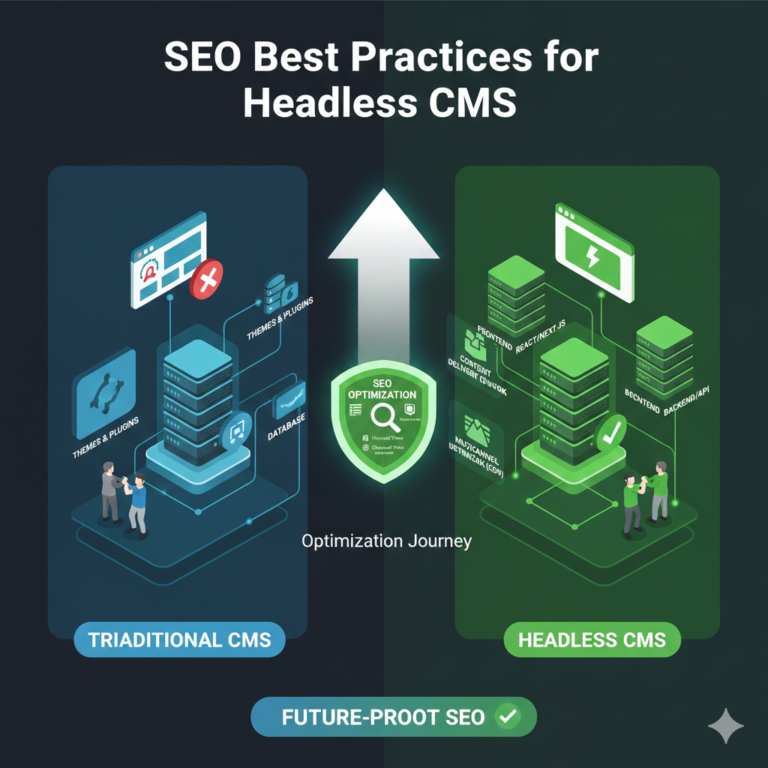
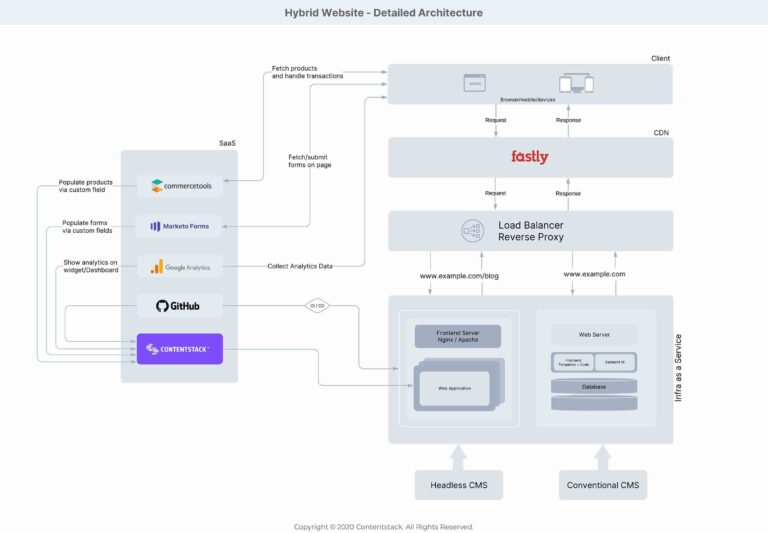
A headless CMS explained simply is a backend-only content management system. A traditional CMS has a “head” (the frontend website presentation) and a “body” (the backend content repository). A headless CMS cuts off the head. It gives you a place to store content, but it lets developers use APIs (Application Programming Interface) to display that content anywhere—on a website, a mobile app, a smartwatch, or a VR headset.
- Pros: Incredible flexibility for developers, omnichannel publishing.
- Cons: Requires advanced coding skills to build the frontend.
- Examples: Contentful, Sanity, Strapi.
Cloud-Based CMS
This refers to any CMS that is hosted in the cloud rather than on a local server. Most modern proprietary systems are cloud-based (SaaS), meaning you can access your dashboard from any computer with an internet connection without installing software.
Popular CMS Examples (2026)
There are hundreds of platforms available, but a few dominate the market due to their reliability and community support. Here are the best CMS platforms and CMS examples leading the pack.
WordPress
WordPress is the juggernaut of the internet, powering over 40% of all websites. It is an open-source platform known for its flexibility.
- Best for: Blogs, small to medium businesses, news sites.
- Cost: Free software (hosting costs money).
Joomla
Joomla is a step up in complexity from WordPress but offers more flexibility for handling different custom post types and user management out of the box.
- Best for: Social networking sites, complex corporate portals.
- Cost: Free open-source software.
Drupal
Drupal is the powerhouse for developers. It is highly secure and scalable, which is why it is preferred by government agencies and large enterprises.
- Best for: Large enterprise sites, sites with heavy data requirements.
- Cost: Free open-source software (high development costs).
Shopify
Shopify is a proprietary, hosted CMS designed specifically for ecommerce. It takes care of payment processing, inventory, and hosting.
- Best for: Online stores.
- Cost: Monthly subscription.
Wix
Wix is a drag-and-drop website builder that functions as a CMS. It is incredibly visual and requires zero technical skill.
- Best for: Portfolios, creative professionals, simple small business sites.
- Cost: Monthly subscription.
Webflow
Webflow bridges the gap between a visual builder and a professional coding environment. It writes clean code as you design visually.
- Best for: Designers and agencies who want custom designs without writing code.
- Cost: Monthly subscription.
Key Features of a CMS
When shopping for CMS tools, you should look for specific CMS features that make managing a website easier.
1. Content Editor
This is the most critical feature. Most CMS platforms use a WYSIWYG (What You See Is What You Get) editor. It allows you to format text, add headers, and insert links just like you would in a Word document. Modern editors, like the Gutenberg block editor in WordPress, allow you to drag and drop elements to build complex layouts.
2. Media Management
Your website isn’t just text. You need a system that organizes images, PDFs, and videos. A good CMS allows you to upload media, crop or resize images, and add “Alt Text” for accessibility directly within the dashboard.
3. User Roles and Permissions
If you have a team, you don’t want everyone to have full administrative access. A CMS allows you to assign roles:
- Administrator: Can change everything.
- Editor: Can publish and edit posts.
- Author: Can only write and publish their own posts.
- Contributor: Can write posts but cannot publish them.
4. SEO Tools
Search Engine Optimization (SEO) is vital for getting traffic. A robust CMS will allow you to customize page titles, meta descriptions, and URL structures (slugs) to help Google understand your content.
5. Plugins and Extensions
No CMS can do everything out of the box. The ability to install plugins (or apps) allows you to extend functionality. Need a contact form? Install a plugin. Need to sell tickets? Install an extension. This modularity is why CMS platforms are so powerful.
Benefits of Using a CMS
Why should you choose a CMS over coding a site from scratch? The benefits of CMS usage are clear for both beginners and pros.
- No Coding Required: As mentioned, this is the biggest draw. You can build a professional site without knowing HTML or CSS.
- Faster Publishing: Why use a CMS? Speed. You can go from a blank page to a published article in minutes. The templates ensure the design is applied automatically.
- Scalability: A CMS can handle the growth of your site. Whether you have 10 pages or 10,000, the database structure keeps everything organized.
- Collaboration: Multiple users can log in and work on the site simultaneously. One person can be writing a blog post while another fixes the design.
- Cost-Effective: Open-source platforms are free to use, and even proprietary ones are often cheaper than hiring a developer to update your site manually every time you need a change.
CMS vs. Website Builder vs. Custom Coding
It can be confusing to distinguish between a “pure” CMS, a website builder, and a custom-coded site. Here is how they compare.
| Feature | CMS (e.g., WordPress) | Website Builder (e.g., Wix) | Custom Coding |
|---|---|---|---|
| Flexibility | High (with plugins/themes) | Medium (limited to platform tools) | Unlimited |
| Ease of Use | Moderate (learning curve) | High (very easy) | Low (requires expertise) |
| Cost | Low to Medium | Medium (Subscription) | High (Developer fees) |
| Maintenance | You manage updates | Platform manages updates | You/Developer manage updates |
| Performance | Depends on hosting/setup | Good (optimized by platform) | Best (if coded well) |
CMS vs Website Builder: A website builder is generally easier for total beginners because it locks you into a specific ecosystem where nothing can “break.” A CMS gives you more freedom but requires you to pay attention to updates and compatibility.
CMS vs Custom Website: Custom coding is usually reserved for web applications with very specific functionality that a standard CMS cannot handle (like a banking portal or a complex SaaS tool). For 99% of content-based websites, a CMS is the better choice.
How to Choose the Right CMS
Selecting the best CMS for beginners or your specific business requires looking at four factors:
1. Website Purpose
What are you building?
- Blog: WordPress is the king here.
- Ecommerce: Shopify is the easiest; WooCommerce (on WordPress) offers more control.
- Portfolio: Squarespace or Wix offer beautiful visual templates.
2. Budget
- Low Budget: Open-source (WordPress/Joomla) is best. You only pay for hosting (approx. $5-$15/month).
- Medium Budget: Hosted platforms (Shopify/Squarespace) cost between $20-$300/month but save you time on maintenance.
3. Scalability
Do you plan to grow significantly? If you anticipate thousands of pages or products, avoid simple website builders. Stick to robust CMS platforms like WordPress or Drupal that can scale with you.
4. Ease of Use
Be honest about your technical skills. If the idea of installing software on a server scares you, stick to a hosted solution like Wix or Shopify. If you are willing to watch a few YouTube tutorials, how to choose a CMS like WordPress will reward you with much more power in the long run.
Is a CMS Good for SEO?
One of the most common questions is about CMS for SEO capabilities. The answer is a resounding yes—if configured correctly.
Most modern CMS platforms are built with SEO in mind. They produce clean code that search engines can crawl easily.
- Clean URL Structure: They allow you to create human-readable links (e.g.,
yoursite.com/about-usinstead ofyoursite.com/id=123). - SEO Plugins: Platforms like WordPress have plugins like Yoast SEO or RankMath that guide you through optimizing every single page, acting like an SEO consultant sitting next to you.
- Page Speed: While a CMS can be slow if you overload it with large images, many best CMS for SEO options have caching tools and image optimizers available to keep the site lightning fast.
How to Get Started with a CMS
Ready to dive in? Here is a quick CMS setup guide for a typical open-source platform like WordPress.
- Choose Hosting: You need a place for your files to live. Providers like Bluehost or SiteGround are popular.
- Register a Domain: This is your address (e.g.,
www.yourbusiness.com). - Install CMS: Most hosts have a “One-Click Install” button for WordPress. You click it, create a username and password, and the host sets up the database for you.
- Pick a Theme: Log in to your new dashboard and browse the theme directory. Pick one that looks close to what you want.
- Add Plugins: Install essential plugins for security, backups, and SEO.
- Publish Content: Create your “Home,” “About,” and “Contact” pages. How to use CMS tools usually involves a simple “Add New Page” button.
Pros and Cons of CMS
To summarize, let’s look at the CMS pros and cons.
Advantages
- User-Friendly: Accessible to non-technical users.
- Quick Deployment: Launch a site in hours, not weeks.
- Community Support: Popular CMSs have massive forums and tutorials.
- Extensible: Add features easily with plugins.
Limitations
- Security Risks: Because they are popular, CMS platforms (especially WordPress) are frequent targets for hackers. You must keep them updated.
- Hidden Costs: While the software is free, premium themes and plugins can add up.
- Performance Bloat: If you install too many plugins, your site can become slow and sluggish.
FAQs – Content Management System (CMS)
What is a CMS used for?
A CMS is used for creating, managing, and modifying website content without technical coding knowledge. It is used for blogs, ecommerce stores, portfolios, news sites, and corporate websites.
Is WordPress a CMS?
Yes, WordPress is the world’s most popular CMS. It powers over 40% of all websites on the internet. It is open-source, free to use, and highly flexible.
Do I need coding skills to use a CMS?
No. The main benefit of a CMS is that it allows you to build and manage a website using a visual interface, similar to editing a document in Microsoft Word. However, knowing some HTML/CSS can help with customization.
What is the best CMS for beginners?
For absolute ease of use, Wix or Squarespace are excellent because they are drag-and-drop. For a balance of ease and long-term power, WordPress is the best choice to learn.
Is a CMS free to use?
Open-source CMS software (like WordPress, Joomla, Drupal) is free to download. However, you must pay for web hosting and a domain name. Proprietary CMSs (like Shopify, Wix) require a monthly subscription fee.
What is the difference between CMS and website builder?
A website builder (like Wix) is a type of CMS that includes hosting and uses a visual drag-and-drop editor. A traditional CMS (like WordPress) requires you to set up your own hosting but offers more flexibility and ownership of your data.
Can a CMS handle large websites?
Yes. Enterprise-grade CMS platforms like Drupal or correctly configured WordPress sites can handle websites with thousands of pages and millions of visitors.
Choose Your CMS and Start Building
The internet is no longer an exclusive club for coders. Whether you want to start a personal blog, launch a business, or build a community, a Content Management System is the key to unlocking that potential.
By understanding what is content management system software, you are already ahead of the curve. The next step is to stop researching and start building. Pick a platform that suits your needs—be it the flexibility of WordPress or the simplicity of Wix—and publish your first page.
Related articles: