Set Up WordPress Hosting: A Practical Beginner Checklist
Setting up WordPress means connecting several parts: a hosting account, a website address and the WordPress installation. Work through them in order so you can tell which part needs attention if something fails.
This checklist is for a new site. If you already have a live website or email on the domain, plan a migration first; changing DNS or installing over an existing directory can interrupt it.
1. Confirm the account and destination
Choose a compatible plan and record what it includes. Check the current WordPress requirements rather than relying on an old version list. Keep access to the hosting account and domain registration under your control.
Decide whether the site belongs at the main domain or a subdomain. Confirm the intended document root or installation destination before starting the installer.
2. Connect the domain carefully
Follow the provider’s instructions for the required DNS records or nameservers. If email already exists, preserve its records and understand who will manage DNS after the change.
DNS changes can take time to become visible across different resolvers. Check the intended site without repeatedly changing records because one device still shows an older response.
3. Install WordPress and enable HTTPS
Use the host’s supported installer or the official installation instructions. Confirm that the target directory does not contain a site you need. Set unique administrator credentials and store them securely.
Enable a valid certificate using the provider’s supported process. Check the final HTTPS address and resolve certificate or mixed-content errors. Do not bypass browser security warnings to finish setup.
4. Set the publishing basics
Review the site title, administrator email, timezone, homepage and permalink choice. Choose a maintained theme and install only plugins needed for a specific job.
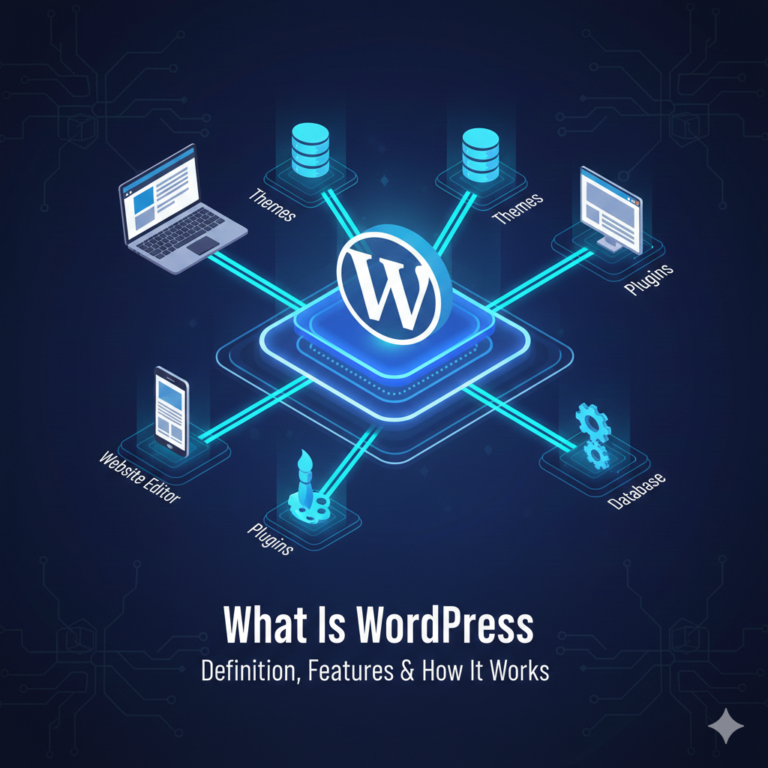
Test the mobile navigation and a sample page. The WordPress introduction explains content, themes and plugins; the hosting-panel tutorial helps identify common account tasks.
5. Prepare recovery and verify launch
Create a backup that covers files and the database, and learn how to restore it. Use the backup checklist before adding substantial content or changing important settings.
Check forms, email delivery, HTTPS, page links and access permissions. Remove test content and review search-visibility settings when the site is ready. Making a site publicly available does not guarantee search indexing.
Keep a short record of the setup and renewal dates. The performance workflow can help with later improvements once the site works correctly.