Rackspace Webmail Login Problems: A Safe Troubleshooting Checklist
When Rackspace Webmail will not let you in, first identify the symptom: rejected credentials, a verification prompt, a page that does not load or a working mailbox with a separate desktop-app problem. These require different checks.
Keep the troubleshooting process small and safe. Repeated login attempts can make diagnosis harder, and disabling security software is not an appropriate general fix. Never share your password or verification code with an informal support contact.
Check the destination and product
Use your organisation’s verified webmail bookmark or the official product support route. A Rackspace administrator portal, standard webmail and a Microsoft 365 sign-in are not the same account interface.
If the URL or certificate produces a browser security warning, stop and use a verified support channel. Do not bypass the warning or type credentials into an unfamiliar replacement page.
Record the non-secret error
Note the time, error wording and whether the problem affects one user or several. Check for a service incident through the official status page and your administrator’s communication.
A status page is useful evidence but may not identify every account-specific fault. Do not claim the service is down solely because one account cannot sign in.
For rejected credentials, avoid a retry loop
Check the intended account identifier and keyboard layout without exposing the password. If the rejection continues, use the approved account-recovery or administrator process. Do not guess a lockout duration or keep submitting variations.
For a verification challenge, use the registered method and trusted interface. If recovery details are unavailable, contact the authorised administrator or official support. Do not disable protections as a shortcut.
For a browser-only issue, isolate carefully
If permitted by your organisation, a separate browser profile or private window can help distinguish stored session data from an account problem. It is a diagnostic check, not a way to bypass a site verification or access restriction.
Preserve unsent drafts before clearing site data. Clear only relevant site data when appropriate rather than deleting every browser session. Do not switch networks or disable endpoint protection to evade a security block.
Separate webmail from app configuration
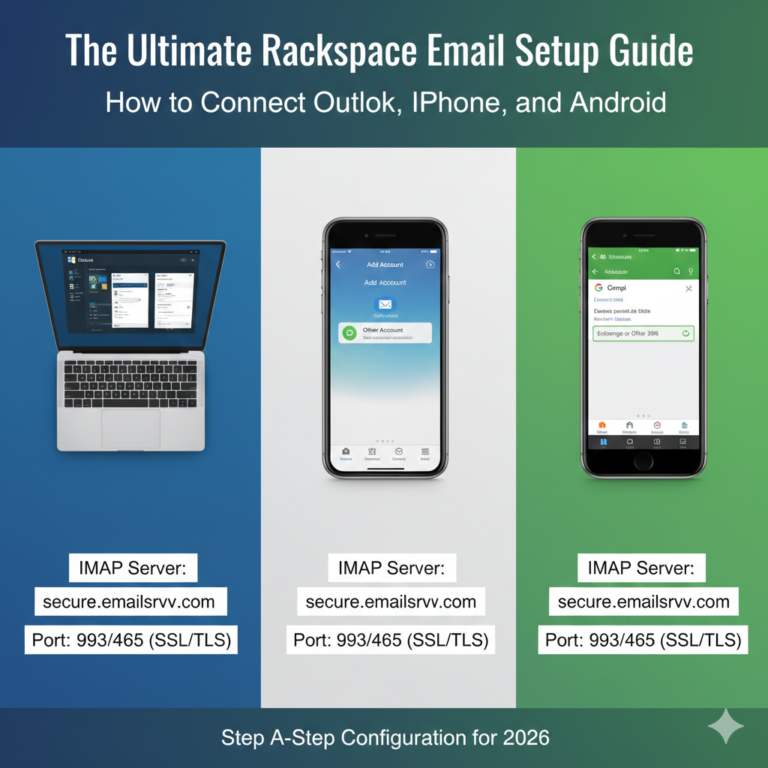
If webmail works and a mail app does not, inspect the app’s supported connection and authentication configuration. The client setup guide distinguishes Rackspace products and mail protocols.
Do not delete the app profile until local-only content is preserved. A password change or profile removal may affect more devices than the one being tested.
Escalate with useful evidence
Give verified support the non-secret error, product, app/browser version, affected users and time range. Redact messages, tokens and personal information from screenshots. Suspected compromise needs an incident response, not routine cache clearing.
The email security checklist covers suspicious rules and access; the migration guide helps if trouble follows a provider change. No login fault was reproduced or fixed in a customer mailbox for this article.