Rackspace Email Setup: Outlook, iPhone and Android Checks
Before setting up a mail app, confirm which product you have. Rackspace Email, Email Plus, Hosted Exchange and Microsoft 365 are different services. Do not apply one product’s server settings to every account sold through Rackspace.
Also record the exact app and version. Classic Outlook, new Outlook, Outlook mobile and a phone’s built-in mail app can offer different setup options. Use current instructions for the actual combination.
Confirm access without exposing credentials
Use your organisation’s verified webmail or help destination to confirm the account is active. Enter credentials only in the trusted sign-in interface. Never send a password to an informal support contact or paste it into a chat.
If the account requires an additional authentication method, follow the product’s supported flow. Do not disable authentication protections or certificate checks to make an unsupported configuration connect.
Use the official setup reference
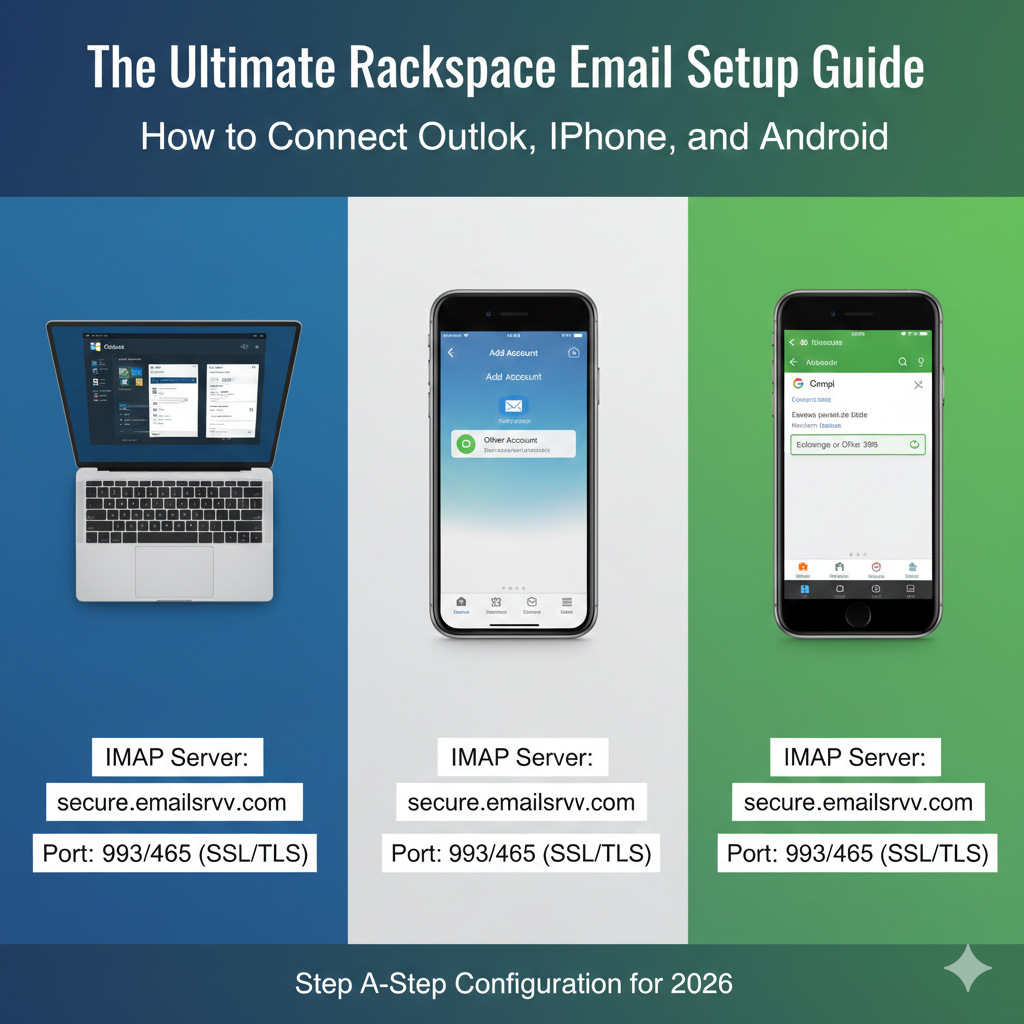
Rackspace’s Email Settings guide provides manual settings and a link to its Email Help Tool. Select the correct device and connection method.
| Standard Rackspace Email connection | Documented encrypted setting |
|---|---|
| Incoming IMAP | secure.emailsrvr.com, port 993 |
| Outgoing SMTP | secure.emailsrvr.com, port 465 |
These settings concern standard Rackspace Email. Use the app’s supported encrypted connection and authentication options. Check the current guide if the interface or your organisation’s configuration differs.
Outlook: check the edition first
Follow the supported account-addition path for your Outlook edition. Where manual configuration is supported, enter the documented incoming and outgoing settings. Verify sending as well as receiving; working IMAP does not prove SMTP is configured correctly.
Do not remove the old account until you understand where local-only folders, contacts and calendars are stored and have preserved them. Deleting a profile can make those items harder to recover.
iPhone and Android: test the required data
Use the supported setup path for the chosen mobile app. Confirm folders and a harmless test message appear consistently between the phone and webmail. Check the selected sent-message folder and expected deletion behavior.
IMAP handles mail; do not assume it also provides calendar and contact synchronisation. The Email Plus guide explains why broader sync must be checked against the plan and client.
Verify and troubleshoot safely
Send and receive with an external test address. Check attachments, replies and folder updates. If an error appears, record its non-secret wording, app version and time. Never include a password in a support screenshot.
The webmail login checklist separates account, browser and service problems. For a wider provider move, use the migration guide. A successful app connection is one acceptance check, not proof that every historical item or integration has moved.